Showing posts with label Active Directory Installation. Show all posts

Tuesday, 30 August 2016

Active Directory Installation, Configuration and Management-2


Hello Professionals,
In this section, I will be creating Additional and Child DC to migrate and upgrade the environment from 2003 server to 2012 server. I have pre-installed 2012 R2 server with static IP Address and updated host name and per best practice and nomenclature.
Before Starting on Lab setup we should first understand and know the AD primary and base level of changes in comparison of 2003 and 2008 windows server OS version.

1.    DC PROMO Command is not available in 2012: In previous version of MS OS version like 2000/2003 ad 2008 to install Active Directory in server, this was the command which upgrade the server to Domain Controller server.  Feature added to Add Roles and Feature from where you can add and remove.
2.    In 2003 and 2008 Server OS Domain Controller require manual intervention to move to specific Sites but in 2012 on the installation and configuration wizard it will prompt and ask to move the DC to specific Sites.
3.    In 2003 Server OS, there was no feature as called Offline Domain join. Suppose one of your organization branch is there and you don’t want to occupy a resource on this location due to different reason. So you can join the domain offline using media.
4.    Another great feature was Read Only Domain Controller, where you can install a Domain Controller on branch location but it will be having not all feature installed. We will be discussing like how, what RODC works in more details in later this blog

Now starting AD installation on 2012 server  :)
Click Add Roles and Features from Server Manager

Select Role Based or Feature Based Option. There is another Option here is Remote Desktop Service and will be discussing later in the blog
I am adding roles on this server so will select the highlighted and next.
There is another great feature in 2012, that you can add or remove  Roles and Features remote server in LAN. Its very advanced option and no need to login to destination server and its manageable from one server
Selet AD DS Roles and click on Add Features
At the same time i added AD LDS as well.


In below screen shots its explaining what meaning is AD DS and AD LDS Roles.

In this screen shot you can see in bottom that there is an option to export the configuration.
Server Manager configuration information is stored in the ServerList.xml and user.config files found here:
    %appdata%\Microsoft\Windows\ServerManager\ServerList.xml
    %appdata%\Local\Microsoft_Corporation\ServerManager.exe_StrongName_GUID\6.2.0.0\user.config
When you click this option, an XML-formatted file is generated, that contains all the choices made in the previous screens of the Add Roles and Features Wizard. This file is presented to you as DeploymentConfigTemplate.xml to save at a convenient file location.
 Install the same Server Role and Feature on another Windows Server Os version by copying this configuration file and and run the below command on powershell
Install-WindowsFeature –ConfigurationFilePath
D:\ConfigurationFiles\DeploymentConfigTemplate.xml


and on advanced option you can use the same xml file to install the roles and feature on remote server by the below command
Install-WindowsFeature –ConfigurationFilePath
D:\ConfigurationFiles\ADCSConfigFile.xml -ComputerName $servernam
e

Now installation is done.
Proceeding further for DC promotion wizard
I had all ready a 2003 DC and am adding this DC in the same forest
From server manager its very possible now that at the time of configuration you can move the DC to specific sites, where in 2003 ad 2008 it can be done after all configuration.

oopss i forgot to promote my functional level of Domain and Forest. To raise Domain functional level you need to open Active Directory User and Computers and right click on the Domain. here you will find a option Raise Domain Functional Level. To Raise Forest Functional Level you need to open Active Directory Site and Services and click on properties of the top domain name.
on this screen i selected this server to be act as GC and DNS. Its pop up to inform if i want a RODC that my Domain controller must have 2008 Windows Server Operating server version ans this feature is not supporting under windows 2003 server operating system.
this server added in Default First Site as i didnt create more site, but its good thought came in mind that create more sites and play more replication, lingering object and other lab practicals and troubleshooting.
This message is more of a notification to tell you that other domains on the Internet and other private network cannot resolve your domain name. At this point we should not worry and tense that what the error and what to do, This is a known issue in DCPROMO you can find the update here.
In some case admins should take this seriously and check
 1.When installing a child domain of an existing AD domain. In this case, the first DC in the child domain should indeed be able to create a DNS delegation within the parent domain.
  2.When installing an internet-connected AD domain for which the DNS delegation has been created manually. The dcpromo wizard checks for an existing delegation before trying to create one, and if it finds one, this should not warning or pop up
It another interesting part,here ntdsutil tool comes in picture and one installation media can be create for additional domain controllers that you are creating in a domain.
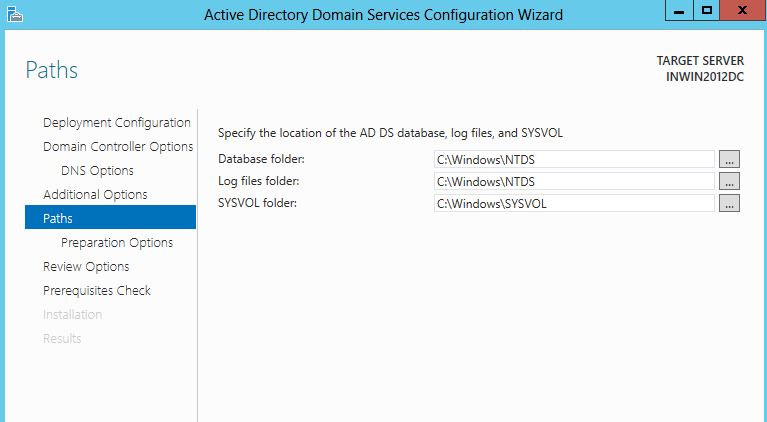
here the default paths of AD installation files
at this points of time this wizard inform you that updates adn modification will also perform on Domain partition and schema partition.
Final check before installing the Roles
After this server rebooted  and DC promotion is finally done.

So till now we had only installed 2012 DC in 2003 Forest infrastructure and next action plan will be explore more roles and feature for Windows Server Operating systems. will update very soon...

Saturday, 30 July 2016

Active Directory Installation, Configuration and Management-1


Lets start with Installation part for Active Directory. Here we will be starting with 2003 Server and then creation/modification editing with AD part and forward to 2008 and 2012 server.

There are lots of enhancement and difference between 2003/2008 and 2012 version of Windows Server and will be discussing on this blog..

My home lab setup is like this :
Vmware workstation with registered version.
I7 Desktop with 32 G RAM,1.8 TB HDD SATA (80GB+250GB+500GB+1TB).
Used Open filer and SCSI different software to share HDD in workstation.

Point to Remember and note with your Excel or Notepad
1.    IP Address of Vms
2.    User Name and password
3.    Any specific configuration that might stop your show :)


Now My 2003 Installation is done with no added and extra feature. Before starting any configuration in Windows Server make sure to update below points
1.    Host Name
2.    Static IP Address
3.    VM Tool ( as we are in Virtual world)

After installation it will show you some different. Please follow the server nomenclature as per your organization with best practise( Some of organization use houch pouch name due to security concern, that if some one logged so he/she could not guess the server functionality by the host name).
So Please correct the host name and give static IP address as we would be starting DCPROMO setup with first DC of the organization.


After reboot I Added DHCP and DNS from control panel, and please keep handy your 2003 ISO or Installation files.


After this Window Select networking services added DHCP/DNS


We have  added DNS and DHCP feature and will start with dcpromo command. As we are installing first Domain Controller so continued with Domain Controller for a new Domain.


Selected with Domain in a New Forest
 type domain name, and wait for 5-10 sec, in that time, it will lookup for  the availability in the network.

 By default all logs save in to this path only.
 SYSVOL, will explaining the importance of this folder later in the blog, once we are done with Basic setup.
 Here selected to configure DNS also on the same server.
 Another important part to discuss later in the blog.

We are done with settings now, after this wizard, AD and DNS basic configuration will start.
 Here pencil started, wait for 10-15 min.
 We are done with dcpromo and after this finish, server will ask to reboot to take the made changes.
 After Reboot i can find my Domain name in Domain field. I logged with Administrator ID and can see some tabs for Active Directory.


After installation, in user tab you can find by default created user and groups to manage the environment.

 Domain and Forest Functional Level is Window 2000 only, that is another point which need to understand.


We are finally done with AD installation on the first DC of the organization. Still there are some basic configuration require to make operational in network.

After that on make sure to check network adapter settings because it will automatically update the primary IP Address to loopback address.

To correct this configuration issue, update your DNS Server IP Address( as we have installed AD and DNS on the same server, so will use this server IP and primary DNS IP).
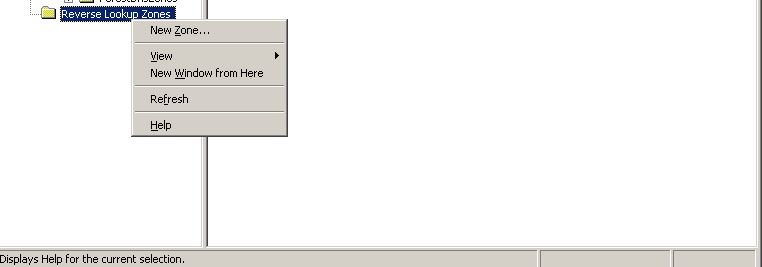
Further to DNS, create reverse lookup and then run the below command to update DNS settings.

ipconfig /flushdns
ipconfig /registerdns

and Restart DNS Server service from service console.


Finally nslookup gave the correct DNS response.