Wednesday, 7 September 2016

DNS Advanced Configuration with Different MS Server Version

In Lab setup we had installed AD with DNS with basic configuration, now will go with advanced configuration. DNS is basically responsible for resolving name in to UP and vise versa in network and there has lots of changes in MS server from 2003, 2008 and 2012 server. Different concept added to newer server version operating system. Its always recommend that Install DNS with and on the same server with Active Directory.
The very interesting and deep drive question that why this need to be install with AD only, and thte answer would be because DNS provides an enterprise-level tool for organizing, managing, and locating resources in a network.

1.DNS Service will help to locate, find and proper response for Domain Controllers
 Net Logon service use DNS server only to register of domain controllers in your DNS domain namespace

2.DNS servers configured on Windows Server 2003 and 2008 can use AD DS for storing,replicating and reply with proper response in zones.With AD Integrated DNS ,its have more advanced feature like replication, DNS updates, aging, scavenging and more are there.In case of non-integrated AD with DNS Server a single authoritative DNS server for a zone is designated as the primary source for particular zone and this server is responsible and act as owner to maintains the master copy of zone in a local file. With this model, the primary server for the zone represents a single fixed point of failure. If this server is not available, update requests from DNS clients response will be on hold and will get response in error.

In case on Integrated DNS with AD, DNS updates will be sending to other available AD-DNS Integrated server in process of replication.All DNS data is replicated to DNS Server and is updating a period of time, and in worst case if primary or any other server is failed or any issue other DNS Server will respond to that client query.
Integrated DNS is more stable and faster replication in comparison of Non-integrated option Because integrated replication processing is performed on a per-property basis, only relevant changes are propagated. Less data is used and submitted in updates for directory-stored zones.In model of non-integrated structure only primary DNS zones can be stored in the directory. A DNS server cannot store secondary zones in the directory. It must store them in standard text files and in case of AD-DNS integrated tructure the multi master replication model of AD DS removes the need for secondary zones when all zones are stored in AD for the DNS zone.
Below are the main record in DNS
 Host (A) resource records:  domain name to an IP address that is used by a computer.
 Alias (CNAME) resource records:  another primary or canonical name.When a server is used for more than one purpose. Like multiple webpages on single server, FTP.
Mail exchange (MX) resource records: in case of exchanges or forwards mail.
Pointer (PTR) resource records:  IP to Host Name
SOA (start of authority) Declares the host that is authoritative for zone and as per best practise near by source of DNS information for the zone. Each zone having an SOA record.
Service location (SRV) resource records: specified list of DNS host computers that offer a specific type of service, such as Active Directory domain controllers.

IN our scenario, we have 2003 and 2012 DNS Server. let me draw image here to understand DNS concept better.That we can use on all setup :)


Here you can see two images as reference with small and multi DNS structure. in Small DNS Structure its very easy to understand that first Root DNS is acting as primary and having all DNS information. If first stop responding to client query some how due to UN-avoidable situation then as per best practise and the configuration as been done in the network or server the second DNS will start responding to client query.For attached pic if any question just text here

After configuration DNS with AD Services, the zone data automatically replicated to all available server in domain. As its explained that how and why DNS-AD Integrated is better and safe in comparison of non-integrated Infrastructure, another important aspect and feature for integrated is application directory partition.These are directories stored in AD which contains data that is replicated to certain DNS servers, By creating this, your DNS environment will be secure and robust.From this option you can limit the replication with specific 2 DNS servers, to enable this configuration part you have to enlist only those servers.
At the time of Active Directory Integrated zone, there will be two partition build automatically DomainDnsZOnes and ForestDnsZones.

Domain Zone partition will replicate and update the data toll running available domain controllers in the network and  Forest will replicate and update the information to available running domain controller in the forest network.


set aging/scavenging for all zones concept:
 

Scanvenange Stale Resource Records:
I tried to enable this in my lab setup but got this 2502 error.
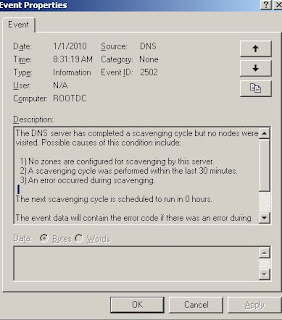
and Microsoft recommend As per Microsoft: "This behavior occurs if you try to manually scavenge a DNS zone that supports dynamic updates immediately after you enable scavenging. You cannot scavenge the zone until the date and the time in the The zone can be scavenged after box is reached. If you try to manually scavenge the records before this date and time, the event ID 2502 message is logged. To work around this behavior, we recommend that you wait until the date and time that is defined in the The zone can be scavenged after box is reached before you start scavenging"

Basic commands which admins are using frequently
nslookup
ipconfig /flushdns
ipconig /registerdns
ipconfig/displaydns

Now will go through with DNS properties tab and there use for environment.
From here you can set the IP addresses that should handle DNS requests and responses

In Forwarder Tab, Servers are designated to received req or query to forward. Forwarders use DNS communication methods to resolve queries and req to send responses back to other DNS servers You can add the DNS server IP which will act as forwarder.Means If user from different domain want a response from trusted other domain so you can add other domain name here.In this tab there is another option is Do not use recursion for this domain which means if your DNS server failed or you dont want to make more traffic load to response the query, so you can check this box and it will stop resolving queries. Let me explain you with another simple example where if you configured server using conditional forwarding option to resolve queries and request for another domain or trusted domain name in internal zone, and if a response to client req failed, you dont want DNS to continue to search other DNS servers of name resolution. 

If this option is enabled then DNS Server will  respond the client query from its own database only, it will not forward or check with another available or additional DNS servers.As best practise this option should be enabled (Due to security and audit policy in example of trusted domain infrastructure)Disable Recursion status ca be check by running command : Dnscmd /Info /SecureResponses
In 2000 server MS have lots of known issue in DNS cache part, Secure cache against pollution option enable to prevent wrong or malfuntction entries from a serevr to outside domain. if this is allowed to cache, then ther will be name resoltion issue. ipconfig /displaydns command shows the cache entry on the server.

BIND Seondaries: i disabled this option and i found that it impact on zone tranfer. means if i unselect this the zone tranfer was fast and if select then it was very slow in regard of update zone data to another DNS servers.
Reg Setting will be HKLM\SYSTEM\CurrentControlSet\Services\DNS\Parameters with REG_DWORD(Data Type) with Default Value of 1.

Fail On Load If Bad Zone Data:by enabling this option DNS server will fail when there is a bad or malfunation data on zoen,Generally, this is a setting we should not enable

Enable Round Robin:Its a well known term for most of technology, where load balancing comes in feature.To avoid load on one DNS server this terms help to enable load balance. If one server having high traffic for cleint req to ti will move the req to another available DNS server.

Enable Netmask Ordering:If you have computers that have more than one NIC (aka multihomed), this setting allows your DNS server to answer with the address that is on the same subnet of the client.

Secure Cache Against Pollution:If enabled, the DNS server will prevent the caching of resource records that were not answers for the originally issued query.MS Article have explained very well with comparison with other Server version OS(https://support.microsoft.com/en-us/kb/241352)

Root Hints:its shows a list of all DNS servers at the root of the Internet and is used for recursive name resolution.

Debug Logging:It recommended to enable logging that will capture the packet sent and received by DNS servers as a log file. you can capture the DNS traffic as per your requirement. which help to troubleshoot and keep an eye on the DNS data. Event Logging: by default this will log all events, and you can customized it.
Monitoring: A good tool to check DNS staus, as status it will show as pass or fail. Even you can schedule this test as per your requirement.
There are other lots of option in DNS server for configuration on large scale, will be explore and share with you very soon.

Monday, 5 September 2016

Installation, Configuration Phase-1


In continuous of previous article where I installed HYPER-V from power shell command, the current host will be there in Hyper-V manager console and you can see lots of tab and action task is listed. We will go through one by one tab with there properties.

There are more on the HYPER-V concept which as admins we should know and update our self. The hypervisor running directly on the hardware with all the virtual machine resource access serviced through the hypervisor. There are other resources that must be available for a full functioning environment, such as storage and networking.
Different Application and devices have their supporting drivers for Windows, with most written by the independent hardware vendor (IHV). All these different types of storage and network drivers and application should be compatible with Hyper-V environment and Operating system.
There are terms and components run in kernel,as example VMUS which help to enable communication between different types of hardware and services, that enable for non-cpu and memory hardware like storage and networking. Every Virtual Service Provide and support in responding to its virtual client.
The VMBus is not shared between all the child partitions, and there is one channel between each child and the parent so no communication or data can be seen by other child partitions running on the same server. This VMBus does not incur any significant performance penalty even though child partitions wanting to access hardware now essentially communicate via the VSC to a VSP on the VMBus hosted on the parent partition, which communicates to the hardware. This is because the VMBus is actually a pure memory bus running at a kernel level, so there is practically no latency introduced, and by using this model, Microsoft keeps the hypervisor small and secure while still allowing full hardware support for the breadth of the Microsoft hardware ecosystem.

SCSI Controller :Generation 1 virtual machine does not have a SCSI controller, but up to four SCSI controllers can be added to a virtual machine. Once a virtual machine has four SCSI controllers,then option to for SCSI controllers will be grayed out.
In-memory VMBus, SCSI controller is the device which gives essentially the highest, bare-metal storage performance. The term bare-metal indicate for a system or environment that does not use virtualization. oar a non-virtualized environment, Each SCSI controller supports up to 64 hard drives attached, maximum of 256 disks attached via the SCSI bus.
The SCSI controller functionality is more enhanced in Windows Server 2012 R2 like Shared VHDX between multiple virtual machines and Dynamic re-sizing of VHDX.

This Pic will clear the difference between Generation 1VM and Generation 2VM versions.
The following Server operating systems can be installed in a generation 2 virtual machine:
>Windows Server 2012
>Windows Server 2012 R2

Conversion of Virtual Machine from Generation from 1 to Generation 2 is bit difficult due to different constraints because generation 1 virtual machine is BIOS based, which equates to a certain disk configuration such as an NTFS system partition. A generation 2 virtual machine is UEFI based and uses a FAT32 system partition. This alone prohibits moving virtual hard disks between generation 1 and generation 2 virtual machines. Also remember that generation 1 machines boot from the IDE controller and generation 2 machines boot from the SCSI controller. The only way to move from generation 1 to generation 2 is to boot the virtual machine from Windows PE, capture the partitions to a WIM fi le, then redeploy to a generation 2 virtual machine,but this amount of effort is really not worth the benefit t, and generation 2 is best saved for new virtual machines.
Windows Server 2012 R2 Hyper-V has another processor-related setting that is set on a per-virtual-machine basis. This setting is migrate to a physical computer with a different processor version. It is not possible to migrate a virtual machine between Intel and AMD processors using migration technologies due to the completely different architecture and instruction sets of the processor.

To resolve this problem, Hyper-V adds the ability to hide many higher-level functions of processors in the guest operating systems. This means you can move guest operating systems between nodes in a cluster even if the processor versions are different because the virtual operating systems are exposed only to the generic instructions that are present in all versions of the processor family. Note that the functionality does not scan the processors and expose the lowest common set of functionality of all the processors in the cluster; it just limits to a generic basic set.
This can also be set using Power Shell with the following
command:
Set-VMProcessor -CompatibilityForMigrationEnabled $true
Prior to Windows Server 2012 Hyper-V, there was also a setting to enable running older operating systems such as NT 4, but this option has been removed from the Hyper-V manager graphical user interface. The problem for older operating systems is that modern processors return more information about the capabilities than can be handled by the operating system and it will blue screen (this was fi xed in Windows NT 4.0 SP6). This option can still be set, but it must be configured using Power Shell:

Set-VMProcessor -CompatibilityForOlderOperatingSystemsEnabled $true

A great way to understand these two settings is with the help of  the Core info utility from SysInternals, which can list all features for a processor. You will find it at the following location:

Windows Server 2012 introduced a new set of configurations for virtual machine processors,NUMA, but the reality is you should never touch these. Most likely bad things will happen and Hyper-V will make the right configurations for your environment without any manual intervention. This NUMA awareness is also a benefit t for enterprise applications such as SQL, MySQL, and IIS that utilize resources based on NUMA configuration.

A VHD can be up to 2 TB in size, and there are a number of different types of VHDs available:
1.Dynamically expanding: This is the most popular format. Essentially the virtual hard disk is created using a minimal amount of disk space, and as the disk is used, the fi e expands on the fi le system to accommodate the data written to the disk up to the size specified as the size for the virtual hard disk. This option is the most efficient use of the disk space because space is not used on the physical hard drives unless needed. In Windows Server 2008, there was a performance penalty with dynamic disks, such as when a write was performed, the file had to grow. However, the VHD implementation was rewritten in Windows Server 2008 R2, and this performance penalty is negligible. A dynamically expanding disk doesn't shrink if data is deleted unless a compact operation is performed. this type of disk is also commonly refereed to as thinly provisioned because it start off thin and grows as data is written to it.
2. Fixed Size: the size specified for the virtual disk is also to user when the disk is created and so if a 127 GB fixed size virtual disk is created, a 127 GB vhd is created on the hyper-v sever. this is likely to lead to less fragmented virtual hard disk
3. Differencing: a differences disk is linked to a parent virtual disk and only store the changes from the parent disk.
Will create one vm with no os version just to see the tabs, option under properties.
started creating vm on this hypervisor by right click and create new vm
 
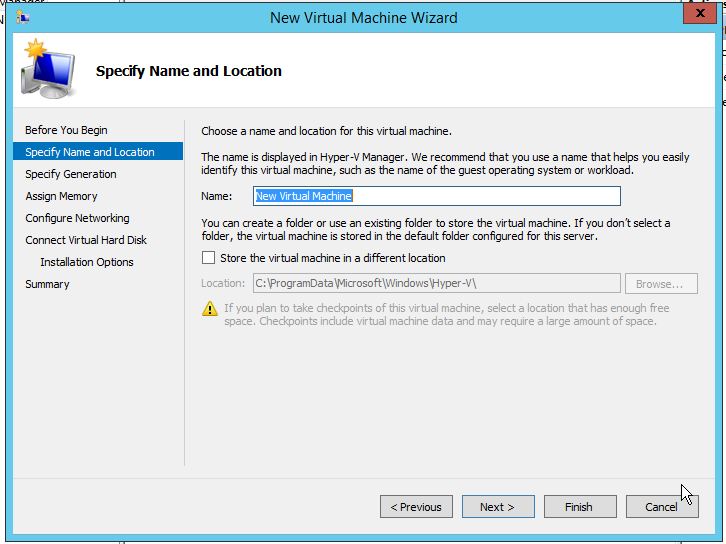
her you can specify name and location of the vm, where you wan to save files of newly created vm.
  This screen well explain about difference in generation-1 and generation-2 type of vm. There is a solution also to change the Generation from 1 to 2.

memory allotment can be done from here
 
This wizard help you for disk related task like you can create new or add existing disk to vm from this option.
 
This option help you to install OS on the vm. you can see in the below of screen shot, it give warning of network adapter because I didnt configured my Hyper-V network stuffs yet :) as this option would need network connection.
  here it will show all vm that are with this hypervisor host or vms managed by this hypervisor host.
  HYPER-V

Sunday, 4 September 2016

VMware More about Log files and Basic Settings with Vsphere


ESXi Host Log Files Path Location:
/var/log/auth.log store ESXi Shell authentication success and failure.
/var/log/dhclient.log store DHCP client logs, including discovery, address
/var/log/esxupdate.log store ESXi patches and update installation logs.
/var/log/hostd.log store Host management service logs, including virtual machine and host tasks and events, communication with the vSphere Client and vCenter Server vpxa agent, and SDK connections.
/var/log/shell.lo ESXi Shell usage. This log file contains a history list of all the commands that have been run at the command line on the host, including enable and disable.
/var/log/sysboot.log store VMkernel startup and module loading.
/var/log/boot.gz A compressed file that contains boot log information and can be read using zcat /var/log/boot.gz|more .
/var/log/syslog.log store Management service initialization, watch dogs, scheduled tasks, and DCUI use.
/var/log/usb.log store USB device arbitration events, such as discovery and pass-through to virtual machines.
/var/log/vob.log store VMkernel observation events, similar to vob.component.event .
/var/log/vmkernel.log store Core VMkernel logs, including device discovery, storage and networking device and driver events, and virtual machine startup.
/var/log/vmkwarning.log store VMkernel warning and alert log messages.
/var/log/vmksummary.log save A summary of ESXi host startup and shutdown and an hourly heartbeat with uptime, number of virtual machines running, and service resource consumption.

vCenter Server Log Files:
vpxd.log The main Server log file that communicates with the vCenter Server Agent (vpxa), which is located on connected ESXi hosts. This log file is useful for troubleshooting configuration and operational errors.
vpxd- This log file is useful for troubleshooting performance issues.
\drmdump\clusternnn\ DRS actions, grouped by the DRS cluster. The log files are gzipped.

Admins can see the ESXi log files using the command line by logging in ESXi Shell and running commands like cat , tail , more , less , or any command that allows you to view a file. The tail –f <filename> is a commonly used command-line command that helps to see changes being added to the log file as they happen. By this command in the background, which keeps the log file open. The other friendly option to view log files by using the vSphere Client and login to the ESXi host. The vCenter Server log files can be viewed directly on the Windows host system or by using the vSphere Client.
One of the changes that was made in vSphere version 5 logging was to separate all the log files to diagnose and troubleshoot, which will help to identify the issue and solution.
Here writing a short description about files that are responsible when a vm creation happen
The .nvram file : This small file contains the BIOS that is used when the VM boots, changes made to the hardware configuration for the VM are saved in the NVRAM file. The very great point that if file is deleted it will be automatically re-created when a VM is powered on.

The .vmx file. This file contains all of the configuration information with hardware settings. The setting which are made as part of that information is stored in text format in this file. This file can contain a variety of information about the VM i.e., RAM size, network interface card info, hard drive info and serial/parallel port info, advanced power and resource settings, VMware tools options and power management options.

VMDK files. store the contents of the virtual machine hard disk drive. These files are stored in the same directory as the .vmx file. A virtual disk is made up of one or more virtual disk files.

flat.vmdk file : Default and large virtual disk data file that is created when you add a virtual hard drive to your VM that is not an RDM.
Thick disks: this file will be approximately the same size as what you specify when you create your virtual hard drive.

delta.vmdk file : this file is create when you take snapshot of a vm. All writes to the original -flat.vmdk are halted and it becomes read-only; changes to the virtual disk are then written to these -delta files instead. The initial size of these files is 16 MB and they are grown as needed in 16 MB increments as changes are made to the VM's virtual hard disk. Because these files are a bitmap of the changes made to a virtual disk, a single -delta.vmdk file cannot exceed the size of the original -flat.vmdk file. A delta file will be created when you take snapshot and file names will be incremented numerically (i.e., vm-000001-delta.vmdk, vm-000002-delta.vmdk). These files are automatically deleted after they are merged in to the vmdk file.

The -rdm.vmdk file:This is the mapping file for the raw device mapping (RDM) format that manages mapping data for the RDM device. The disk file is presented to the ESX host as an ordinary disk file.The storage virtualization layer presents the mapped device as a virtual SCSI device.

The .vswp file : Memory swap file is created that can be used in lieu of physical host memory if ESX host exhausts all its physical memory because due to overcommitted. These files are created equal in size to the amount of memory assigned to a VM, minus any memory reservations (default is 0) that a VM may have set on it (i.e., a 4 GB VM with a 1 GB reservation will have a 3 GB VSWP file created). These files are always created for virtual machines but only used if a host exhausts all of its physical memory. In this period of time VMs can have performance issue. These files can take up quite a large amount of disk space on your VMFS volumes, so ensure that you have adequate space available for them, as a VM will not power on if there is not enough room to create this file. These files are deleted when a VM is powered off or suspended. Virtual machines will lock the .vswp, -flat.vmdk and -delta.vmdk, .vmx and .log files during time.

The .vmss file. This file is used when virtual machines are suspended state. Size of this will is approximately the same size as the amount of RAM that is assigned to a VM. When a VM is brought out of a suspend state, the contents of this file are written back into the physical memory of a host server, however the file is not automatically deleted until a VM is powered off (an OS reboot won't work). If a previous suspend file exists when a VM is suspended again, this file is re-used instead of deleted and re-created. If this file is deleted while the VM is suspended, then the VM will start normally and not from a suspended state. This is very helpful when you have to find the root cause of the OS level issue, you can convert this in to memory dump and diagnose the issue.

The .vmsd file. This file is used with snapshots to store metadata and other information about each snapshot that is active on a VM. This text file is initially 0 bytes in starting. It updated the with information every time snapshots are created or deleted. It show display name and description, and the UID of the snapshot. Once snapshots are deleted, this file retains old snapshot information but increments the snapshot UID to be used with new snapshots. It also renames the first snapshot to "Consolidate Helper," presumably to be used with consolidated backups.

The .vmsn file. This file is used with snapshots to store the state of a virtual machine when a snapshot is taken. A separate .vmsn file is created for every snapshot that is created on a VM and is automatically deleted when the snapshot is deleted. The size of this file will vary based on whether or not you choose to include the VM's memory state with your snapshot. If you do choose to store the memory state, this file will be slightly larger than the amount of RAM that has been assigned to the VM, as the entire memory contents, including empty memory, is copied to this file. If you do not choose to store the memory state of the snapshot then this file will be fairly small (under 32 KB). This file is similar in nature to the .vmss that is used when VMs are suspended.

The .log file. LOG files are created to log information about the virtual machine and are often used for troubleshooting purposes. There will be a number of these files present in a VM's directory. The current log file is always named vmware.log and up to six older log files will also be retained with a number at the end of their names (i.e., vmware-2.log). A new log file is created either when a VM is powered off and back on or if the log file reaches the maximum defined size limit. The amount of log files that are retained and the maximum size limits are both defined as VM advanced configuration parameters (log.rotateSize and log.keepOld).

After VCenter Installation, can see in service console that vm related services are there with manual, automatic and automatic (delayed start) status.


After login to VCenter first time, Admins should add the group or individuals domain user names that will be responsible to manage the VMware environment. From here you can give different level of access. Like Administrator Role, Read Only, and that are need to be done from Permission tab of VCenter. By default administrator@vsphere.local would be authorised to login from vsphere client. I gave Administrators, Administrator as Admin access.


There are 9 different access roles which you can use and assign permission as per access level.
There are other configuration also require on VCenter level.

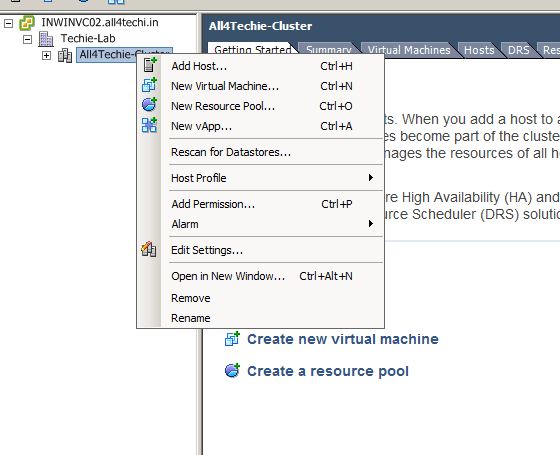
From this tab only HA and DRS feature can be on and off on the vm cluster 


Try to keep virtual machine sizing requirements similar across all configured virtual machines. The Host Failures Cluster Tolerates admission control policy uses slot sizes to calculate the amount of capacity needed to reserve for each virtual machine. The slot size is based on the largest reserved memory and CPU needed for any virtual machine. When you mix virtual machines of different CPU and memory requirements, the slot size calculation defaults to the largest possible, which limits consolidation.

Admission control is used to ensure that sufficient resources are available in a cluster to provide failover protection and to ensure that virtual machine resource reservations are respected. There are three Admission control policies:
1. Specify Failover Hosts Admission Control Policy
2. Percentage of Cluster Resources Reserved Admission Control Policy
3. Host Failures Cluster Tolerates Admission Control Policy

The following recommendations are best practices for vSphere HA admission control:
  1. Select the Percentage of Cluster Resources Reserved admission control policy. This policy offers the most flexibility in terms of host and virtual machine sizing. When configuring this policy, choose a percentage for CPU and memory that reflects the number of host failures you want to support. For example, if you want vSphere HA to set aside resources for two host failures and have ten hosts of equal capacity in the cluster, then specify 20% (2/10).
  1. Ensure that you size all cluster hosts equally. For the Host Failures Cluster Tolerates policy, an unbalanced cluster results in excess capacity being reserved to handle failures because vSphere HA reserves capacity for the largest hosts. For the Percentage of Cluster Resources Policy, an unbalanced cluster requires that you specify larger percentages than would otherwise be necessary to reserve enough capacity for the anticipated number of host failures.
  1. If you plan to use the Host Failures Cluster Tolerates policy, try to keep virtual machine sizing requirements similar across all configured virtual machines. This policy uses slot sizes to calculate the amount of capacity needed to reserve for each virtual machine. The slot size is based on the largest reserved memory and CPU needed for any virtual machine. When you mix virtual machines of different CPU and memory requirements, the slot size calculation defaults to the largest possible, which limits consolidation.
  1. If you plan to use the Specify Failover Hosts policy, decide how many host failures to support and then specify this number of hosts as failover hosts. If the cluster is unbalanced, the designated failover hosts should be at least the same size as the non-failover hosts in your cluster. This ensures that there is adequate capacity in case of failure.
Its very important part of HA configuration and wil be covering in more advanced very soon.


Here you can configure restart priority and isolation process.

 Its all default settings,and will be covering in more details very soon

VMware Datastore Hearbeating provides an additional option for determining if host is in failed state or not.

vCenter automatically selects at least two datastores from the shared datastores(to enable this yu should have atleast 2 shared datastorage). It’s preferable to have VMware Datastore heartbeating selected on every storage device in vmware environment. It can be check from the properties cluster that which datastores has been selected.

This option enables to avoid false restarting of VMs in cluster in case only a management network has failed. The default number of heartbeat datastores is two, and maximum valid heartbeat is five. It can override the default value by an editing advanced attribute: das.heartbeatdsperhost.

 This option enable automation level, in example at time of high memory, cpu or storage utilization on host, so how DRS should react. In Manual option, every time admins to run DRS and then it will show recommendation. In Partially option, vcenter will recommend to migrate the vms to another or which host. In Fully Automated option vcenter will itslef do all actions which are require to balance the cluster performance.

An important thing to remember is that even with DRS Groups in place, VMware High Availability will not be inhibited by these rules. In this option you can specifiy the at the time of action which vm will be moved to which host and other criteria. its usefull in terms of Licensing, where its based on quantiy or bind with specific host for application vendor.

Here Affinity and Anti-Affintiy rules work. In circumstances where application require that any two move should move together to specific host is called Affinity Rules, and in case of Domain controller, where as per best practice it should be configured like that 2 Domain controller should not be on same host. Hope you got the point where am trying to highlight the concept.Will be configuring this option later in lab.

Level of automation in Vsphere are
1. Fully Automated
2 .Partially Automated
3. Manual
4.Default
5. Disabled

 In this option vcenter will recommend and suggest as per option. In Off Mode no recommendation, In Manual it will display the recommendation but action would require manual intervention and as word explain automatic, it will recommend and perform the action with any human or manual activity.

It shows for all host in cluster when last time power management was applied


EVC allows to migrate vm between different generation of CPUs.EVC cannot enable vMotions between AMD and Intel processors, a VM can have problems if vMotioned to a host with a differing set of CPU instructions. We will be doing more on later very soon.

 From here you can save the swapfile location for vms in cluster.

Tuesday, 30 August 2016

Active Directory Installation, Configuration and Management-2


Hello Professionals,
In this section, I will be creating Additional and Child DC to migrate and upgrade the environment from 2003 server to 2012 server. I have pre-installed 2012 R2 server with static IP Address and updated host name and per best practice and nomenclature.
Before Starting on Lab setup we should first understand and know the AD primary and base level of changes in comparison of 2003 and 2008 windows server OS version.

1.    DC PROMO Command is not available in 2012: In previous version of MS OS version like 2000/2003 ad 2008 to install Active Directory in server, this was the command which upgrade the server to Domain Controller server.  Feature added to Add Roles and Feature from where you can add and remove.
2.    In 2003 and 2008 Server OS Domain Controller require manual intervention to move to specific Sites but in 2012 on the installation and configuration wizard it will prompt and ask to move the DC to specific Sites.
3.    In 2003 Server OS, there was no feature as called Offline Domain join. Suppose one of your organization branch is there and you don’t want to occupy a resource on this location due to different reason. So you can join the domain offline using media.
4.    Another great feature was Read Only Domain Controller, where you can install a Domain Controller on branch location but it will be having not all feature installed. We will be discussing like how, what RODC works in more details in later this blog

Now starting AD installation on 2012 server  :)
Click Add Roles and Features from Server Manager

Select Role Based or Feature Based Option. There is another Option here is Remote Desktop Service and will be discussing later in the blog
I am adding roles on this server so will select the highlighted and next.
There is another great feature in 2012, that you can add or remove  Roles and Features remote server in LAN. Its very advanced option and no need to login to destination server and its manageable from one server
Selet AD DS Roles and click on Add Features
At the same time i added AD LDS as well.


In below screen shots its explaining what meaning is AD DS and AD LDS Roles.

In this screen shot you can see in bottom that there is an option to export the configuration.
Server Manager configuration information is stored in the ServerList.xml and user.config files found here:
    %appdata%\Microsoft\Windows\ServerManager\ServerList.xml
    %appdata%\Local\Microsoft_Corporation\ServerManager.exe_StrongName_GUID\6.2.0.0\user.config
When you click this option, an XML-formatted file is generated, that contains all the choices made in the previous screens of the Add Roles and Features Wizard. This file is presented to you as DeploymentConfigTemplate.xml to save at a convenient file location.
 Install the same Server Role and Feature on another Windows Server Os version by copying this configuration file and and run the below command on powershell
Install-WindowsFeature –ConfigurationFilePath
D:\ConfigurationFiles\DeploymentConfigTemplate.xml


and on advanced option you can use the same xml file to install the roles and feature on remote server by the below command
Install-WindowsFeature –ConfigurationFilePath
D:\ConfigurationFiles\ADCSConfigFile.xml -ComputerName $servernam
e

Now installation is done.
Proceeding further for DC promotion wizard
I had all ready a 2003 DC and am adding this DC in the same forest
From server manager its very possible now that at the time of configuration you can move the DC to specific sites, where in 2003 ad 2008 it can be done after all configuration.

oopss i forgot to promote my functional level of Domain and Forest. To raise Domain functional level you need to open Active Directory User and Computers and right click on the Domain. here you will find a option Raise Domain Functional Level. To Raise Forest Functional Level you need to open Active Directory Site and Services and click on properties of the top domain name.
on this screen i selected this server to be act as GC and DNS. Its pop up to inform if i want a RODC that my Domain controller must have 2008 Windows Server Operating server version ans this feature is not supporting under windows 2003 server operating system.
this server added in Default First Site as i didnt create more site, but its good thought came in mind that create more sites and play more replication, lingering object and other lab practicals and troubleshooting.
This message is more of a notification to tell you that other domains on the Internet and other private network cannot resolve your domain name. At this point we should not worry and tense that what the error and what to do, This is a known issue in DCPROMO you can find the update here.
In some case admins should take this seriously and check
 1.When installing a child domain of an existing AD domain. In this case, the first DC in the child domain should indeed be able to create a DNS delegation within the parent domain.
  2.When installing an internet-connected AD domain for which the DNS delegation has been created manually. The dcpromo wizard checks for an existing delegation before trying to create one, and if it finds one, this should not warning or pop up
It another interesting part,here ntdsutil tool comes in picture and one installation media can be create for additional domain controllers that you are creating in a domain.
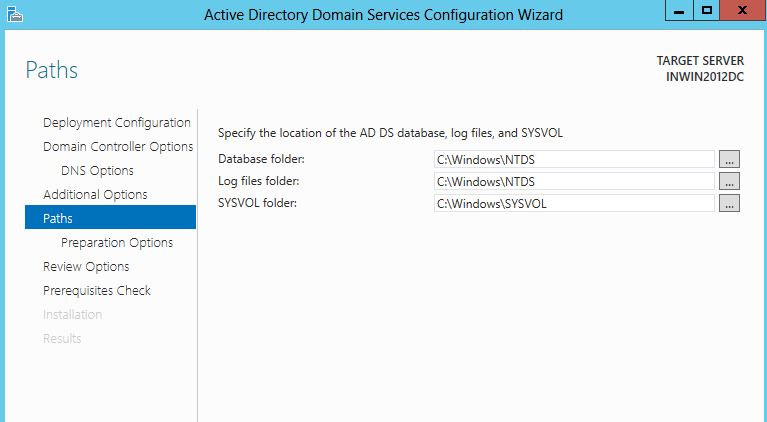
here the default paths of AD installation files
at this points of time this wizard inform you that updates adn modification will also perform on Domain partition and schema partition.
Final check before installing the Roles
After this server rebooted  and DC promotion is finally done.

So till now we had only installed 2012 DC in 2003 Forest infrastructure and next action plan will be explore more roles and feature for Windows Server Operating systems. will update very soon...